Everything you need to know before your first game: how to pick gift rules, how to rehearse, and how to keep your audience playing.
1
Before you start
You need three things:
A TikTok account that can go LIVE
A Windows PC with TikTok LIVE Studio (or OBS)
A free LiveArcadeHub account
Then get the app: download it for Windows (recommended: games run in their own window, made for LIVE Studio) or open it in your browser with nothing to install. It is the same app and the same account.
The first time, Windows may show “Windows protected your PC”. The app is new and does not have a paid publisher certificate yet, so Windows does not know it. Click More info, then Run anyway.
2
Choose your game
Open the app and go to Games. Start with SkyShift: the climber heads for the finish line at 10,000 meters while your viewers push it up or knock it down. On Windows press Install once; after that it starts instantly and updates with one click. Every game comes with its own gift actions, so it works the moment you open it.
SkyShift plays two ways: a race to the finish, or an endless climb with the finish turned off.
3
Plan your gift rules
A rule links a TikTok gift to a game effect. Good rules make your stream easy to understand and fun to join. A few tips:
Start with 3 to 5 rules. You can add more once your audience gets it.
Give cheap gifts small effects and rare gifts big ones.
Balance helpful and chaotic effects, so the run stays exciting.
Use gifts your viewers can actually send in their region.
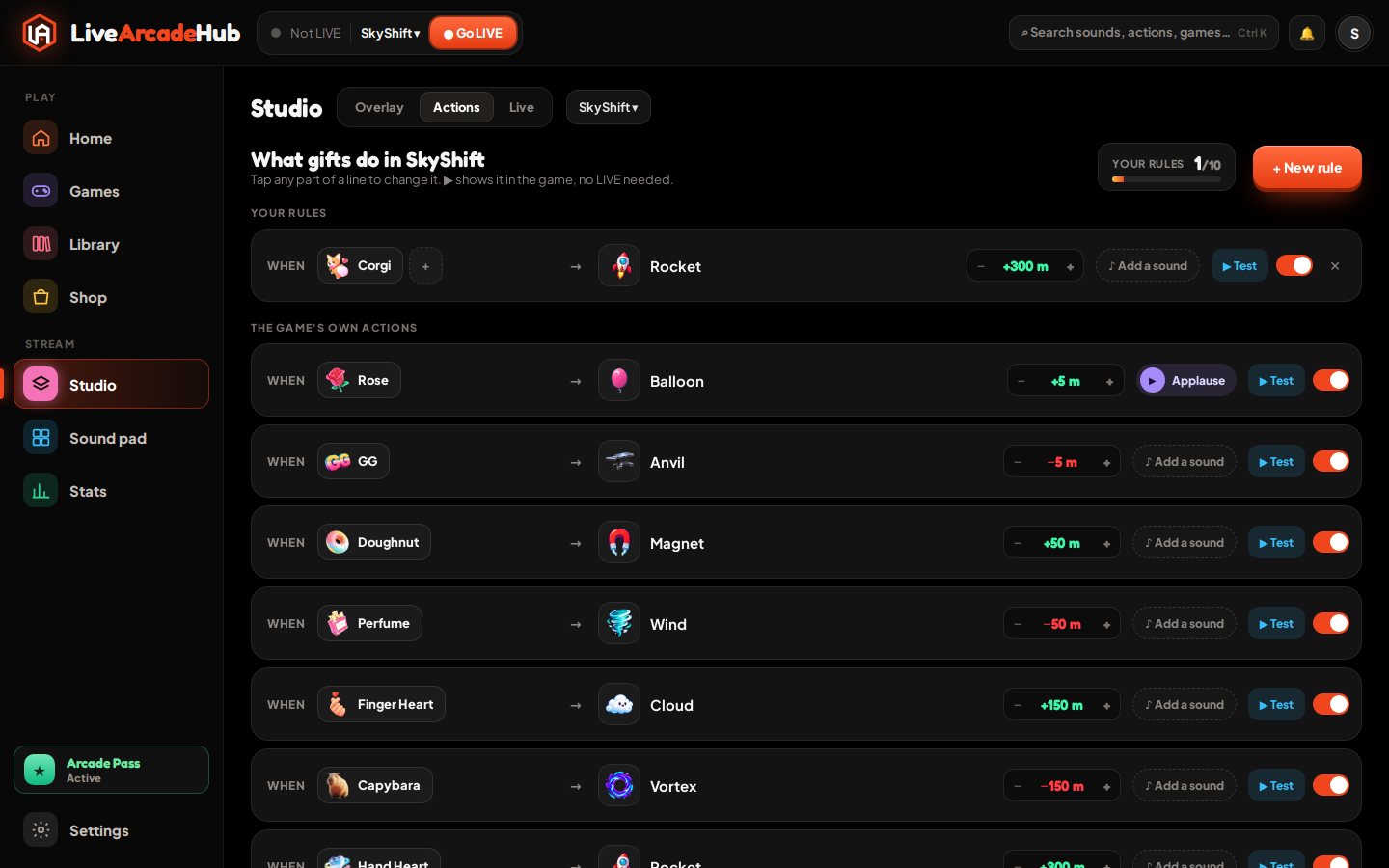
GiftEffectWhat happens
Rose · 1BalloonA small lift
Finger Heart · 5CloudA softer climb
Doughnut · 30AnvilThe climber drops
Galaxy · 1,000RocketA huge boost
Lion · 29,999VortexChaos for everyone
In the app, open Studio → Actions. Each rule is one line: tap the gift, tap what it does, add a sound. + New rule asks for the gift, then the effect.
A starter set you can copy. Free accounts get every game action plus 3 custom gift rules per game; Arcade Pass gives 10.
4
Try it before you go LIVE
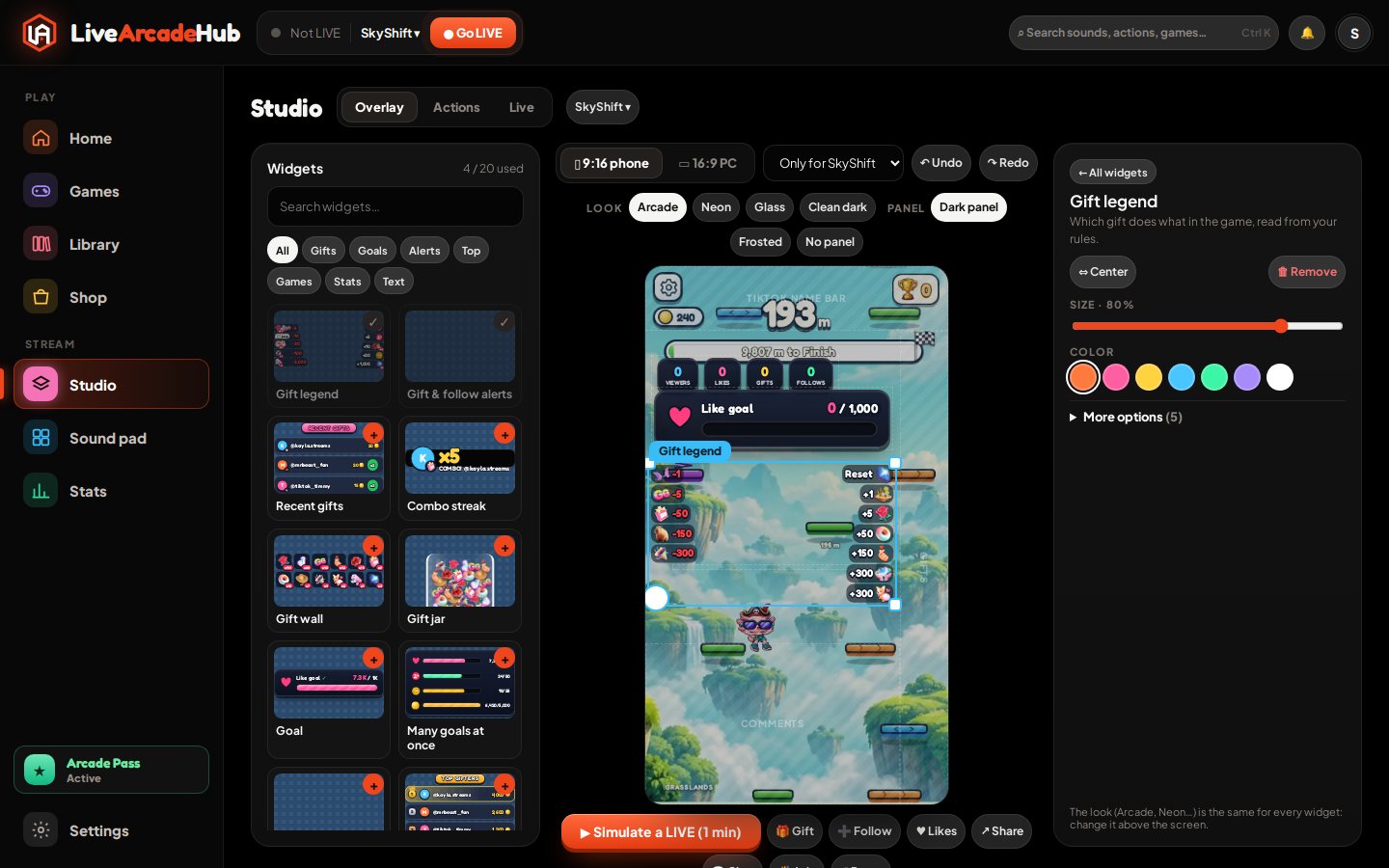
Every rule has a ▶ Test button: it plays that effect in the game window, no LIVE needed. In the overlay editor, Simulate a LIVE sends a minute of test gifts, likes and follows so every widget moves. Check that each effect is easy to see, that the sound level is right, and that nothing covers your face or chat.
Test gifts never count toward leaderboards, totals or your stats.
5
Put the game on your stream
Press Play. The game opens in its own window. In TikTok LIVE Studio choose Add source → Window capture and pick the game window.
The game window is a normal window: drag its edges to any size and shape, and the game fills it. It opens as you left it. Want your camera too? Add it in LIVE Studio wherever you like, for example above the game.
For your overlay (leaderboards, goals, alerts, the gift legend), open Studio → Overlay, start from a ready layout and drag widgets over your real game. Then:
press Copy overlay link and add it in LIVE Studio as Link, size 1080 × 1920 (in OBS as a Browser source, same size). Paste it once: every change in the editor shows on it by itself. If it shows a black background instead of your game, turn on Green background, copy the link again and key out the green.
6
Go LIVE
Press Go LIVE in the app and type your TikTok ID: the name after the @ on your profile, not your display name. Start your LIVE on TikTok; the app connects by itself within seconds, and every time after that too.
Keep the game window open while you are LIVE and you appear on our LIVE page, the leaderboard and Discord. For a ✓ next to your name, verify your TikTok in the app: Settings → Account → Verify, then type the code in your own LIVE chat.
7
Keep them playing
Explain the rules early. Say which gifts do what in your first minute, and repeat it when new viewers arrive.
Pin a comment. A short list like "Rose = balloon, Galaxy = rocket" helps everyone join in.
Celebrate supporters. Their names appear in the game. Call them out and thank them.
Set a goal. "Let's reach the finish together" gives your audience a reason to stay.
Mix it up. Switch modes or rules between rounds to keep things fresh.
8
Avoid TikTok restrictions
TikTok can limit a LIVE's reach or its gifts on its own. No game or tool can lift a restriction, and you are responsible for everything that happens in your LIVE, tools included. These habits keep game LIVEs safe:
Be there. Keep your camera on, even small in a corner, and talk to your viewers. A LIVE that shows only a game, with nobody there, is what TikTok limits most. Pause or end the LIVE when you step away.
Keep the gift legend small. In Studio → Overlay you can show fewer rows, or show it only now and then (Gift legend → Show every … minutes). Ask for gifts with your voice, not with a big panel.
No prizes for gifts. A wheel, auction or challenge can offer dares, songs or choices, never money, coins or things: gifts for a chance at a prize count as gambling on TikTok. LiveArcadeHub does not let you save such prizes.
No copyrighted music. Use the game's own sounds, your sound pad or music you have the rights to.
Moderate your chat. Turn on TikTok's keyword filter and add a moderator; harmful comments can get the whole LIVE flagged.
No fake activity. Do not watch your own LIVE from a second account or ask for likes from bots.
If you are restricted, keep streaming normally; if it looks wrong, appeal in the TikTok app with a short, factual message.
9
Troubleshooting
Windows says “Windows protected your PC”
That is Windows SmartScreen: the app does not have a paid publisher certificate yet, so Windows does not know it. Click More info, then Run anyway. Download it only from livearcadehub.com.
Gifts are not moving the game
Check that the top bar shows your LIVE as connected and that the gift has a rule. Press ▶ Test on that rule to check the game window.
"TikTok ID not found"
Use the name after the @ on your TikTok profile, not your display name.
The game looks cut off or has black bars on stream
Give the game window the shape of its place on your LIVE with the buttons on its top bar (full screen, under the camera, bottom half), then fit the Window capture source to that place.
I don't show up on the LIVE page or the leaderboard
Keep the game window open while you are LIVE, and check that public discovery is on in your account settings.
I closed the app by mistake
Open it again. Your LIVE connection, settings and queued gifts are kept.
Questions
Do I need Arcade Pass to start?
No. Free has every game action, 3 gift rules of your own per game and an overlay with 6 widgets. Arcade Pass gives 10 rules per game, 20 widgets, every Arcade Pass game and autoplay.
Can I hide my stream from the LIVE page?
Yes. Turn off public discovery in your account settings.
Where can I get help?
Send us a message through the Support form in the Resources menu, or ask the community on Discord.